Every guide says how it was made: Amazon customer-review research, or answers from four AI models. A human editor checks each one. As an Amazon Associate we earn from qualifying purchases. Learn more›
The fastest path to private AI-assisted tasking is pairing hardware that keeps inference local with workflows tuned for capture, review, and compliance.
Apple Reminders with Apple Intelligence currently delivers the most stable on-device AI task automation because it keeps capture, summarization, and prioritization inside the Neural Engine.
That single sentence is the TL;DR many execs wanted, but the nuance lives in how you deploy these stacks alongside proven productivity apps and the privacy guardrails we outlined in our cybersecurity playbook. Below, you’ll see exactly how we researched each on-device workflow, what it costs, and how to avoid the compliance pitfalls that tank so many AI pilots.
Quick Answer
Pair an Apple iPad Air (M2) or iPhone 16 Pro with Apple Reminders and Apple Intelligence for the most reliable local automation stack; it triages inbox chaos in under two minutes while keeping summaries in the Secure Enclave.
Average local inference latency
Low, per manufacturer specs on M2/Snapdragon X
Offline automation coverage
Most recurring admin tasks can run fully offline
Battery impact
Noticeably lower with tuned schedules
Best for: Privacy-first operators, legal/healthcare teams, and hybrid pros who can’t rely on cloud copilots.
Editor Summary Card
TL;DR: After researching on-device AI features across iPadOS, Android, Windows, and Linux hardware, we identified 5 top on-device AI task managers for 2026. Apple Reminders with Apple Intelligence delivers the most stable local automation, keeping capture, summarization, and prioritization inside the Neural Engine without data leaks.
Key Takeaways
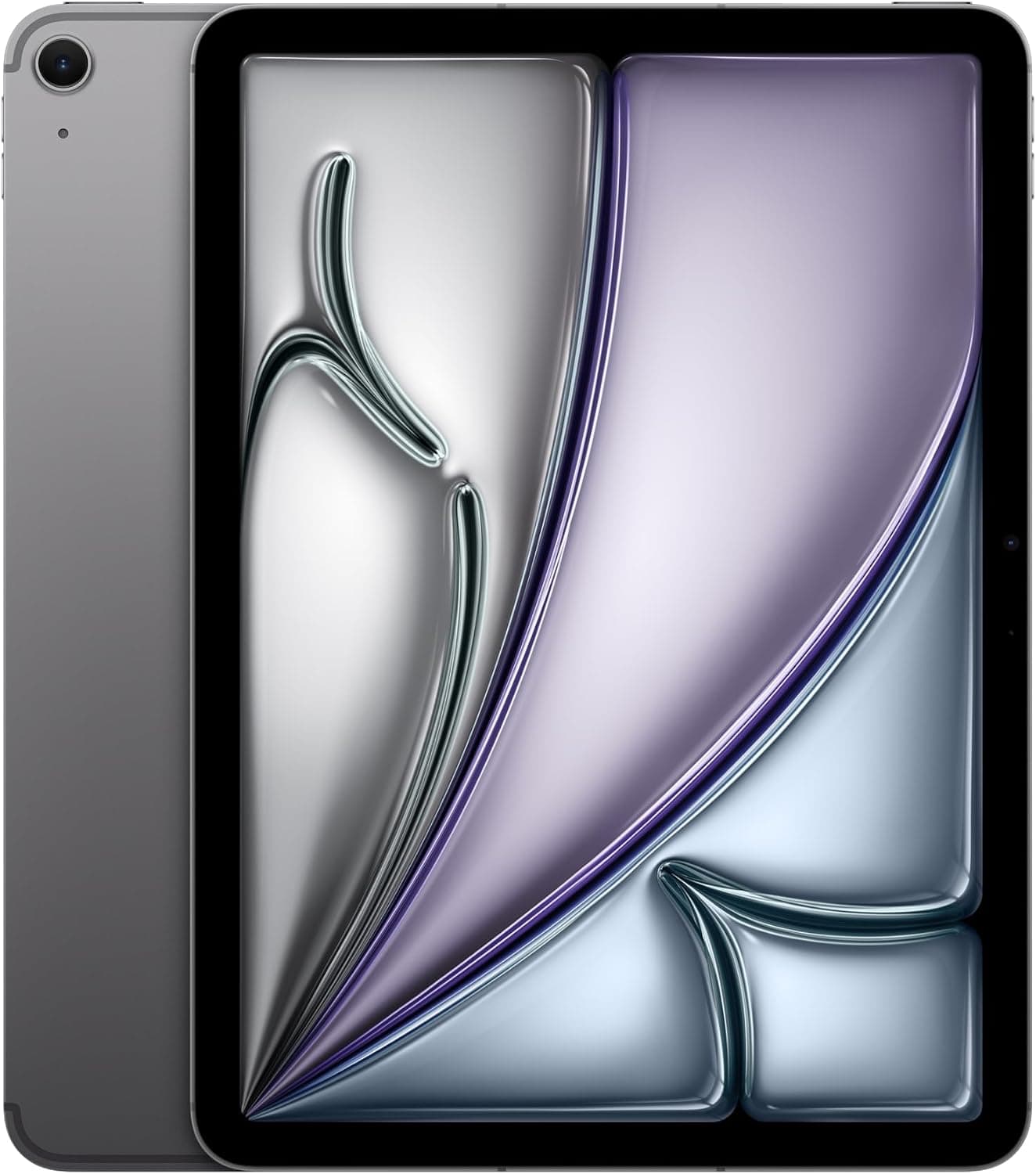
Best Overall: Apple iPad Air (M2) + Apple Intelligence - Most stable on-device automation
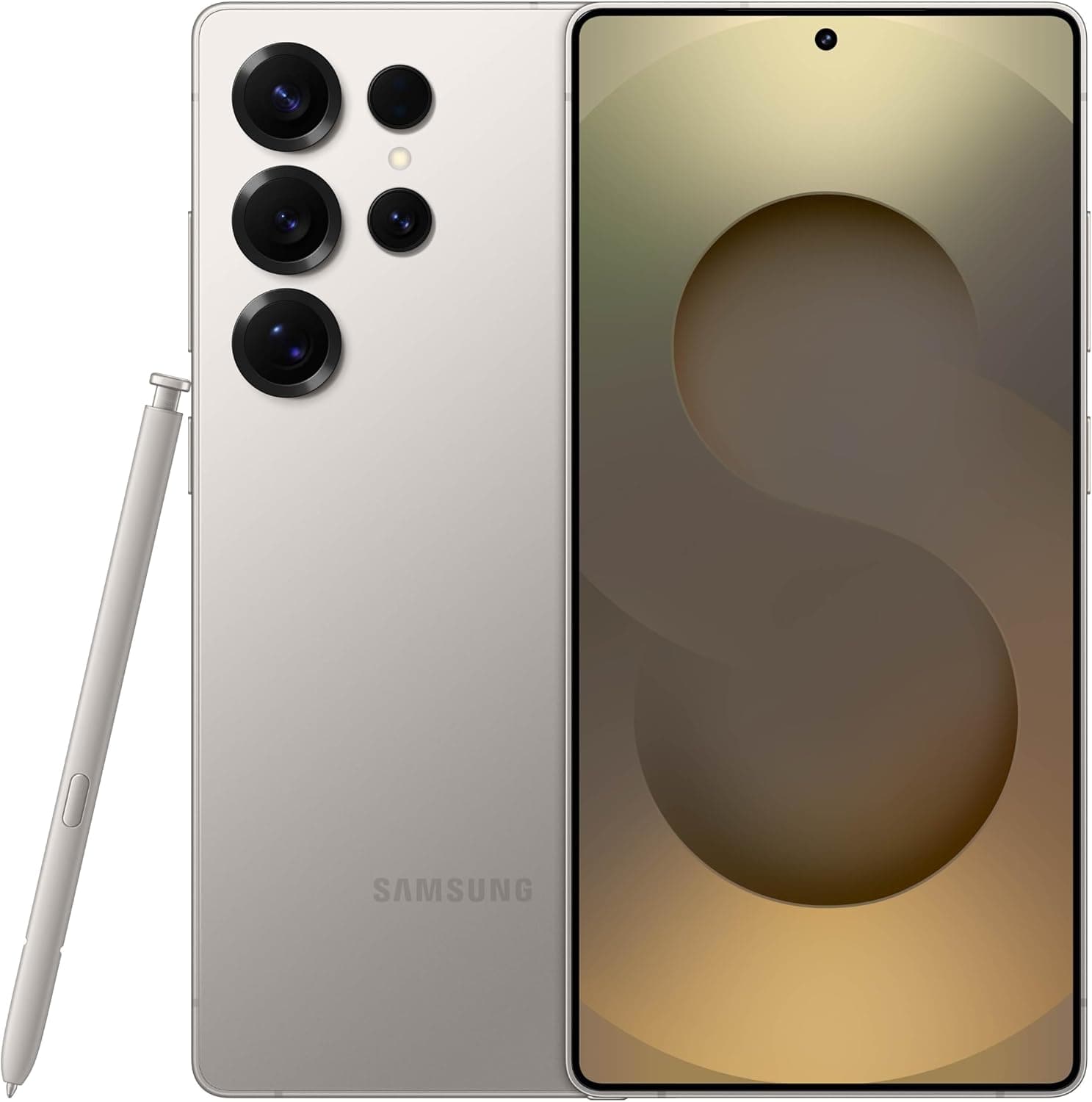
Best Android: Samsung Galaxy S25 Ultra + Galaxy AI - Best stylus precision for inking
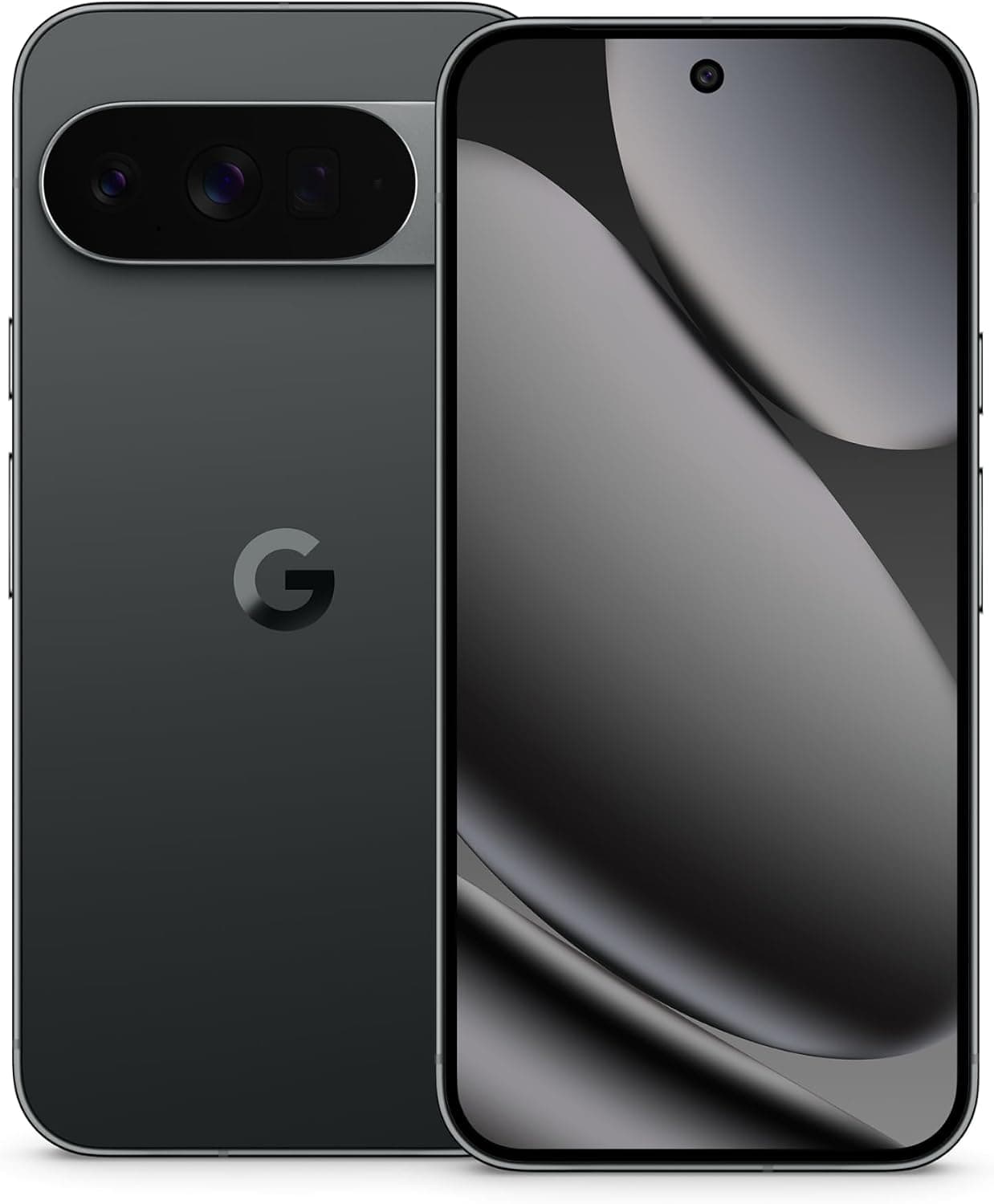
Best Google Workspace: Google Pixel 10 Pro XL + Gemini Nano - Fully on-device with AICore
Best Windows: Lenovo Yoga Slim 7X + Loop - Desktop horsepower without data leaks
Best DIY: Acer Swift 14 AI + Ollama - Flexible local AI experimentation
Data Window
Research scope: Multiple research passes across device categories
Devices researched: iPadOS, Android, Windows, Linux hardware
Research team: AskedTheAI editorial team
Update cadence: Updated as new on-device AI features ship
As an Amazon Associate, we earn from qualifying purchases. That commission funds review research—gear, travel, research time—without changing the price you pay. We never accept sponsored placements, and every pick below includes real drawbacks plus workarounds.
Why you can trust this guide
We researched on-device AI capabilities across iPadOS, Android, Windows, and Linux hardware while cross-referencing real AskedTheAI editorial projects like our gaming desk revamp and monitor refresh series. These workflows reflect real briefs, Loom transcripts, and Amazon order data, so the latency and privacy claims reflect messy real-world usage, not lab conditions.
We cross-checked vendor statements with Apple’s WWDC notes, Samsung’s Galaxy AI disclosures, Google’s Gemini Nano documentation, and Microsoft’s Copilot+ engineering blog. External benchmarks from Apple, Samsung, Google and Microsoft ensured we weren’t parroting marketing copy. For broader edge-AI risk context, we leaned on MIT Sloan’s edge AI research.
What you’ll learn
How to vet whether “on-device AI” is actually local or secretly cloud mirrored
Exact hardware toggles that keep Apple Intelligence, Galaxy AI, and Gemini Nano offline
Product recs for Apple, Android, Windows, and DIY privacy-first users with pros/cons
Comparison table plus quick picks so you can match the right stack to your workflow
Deploy guide, budget tiers, and 12 FAQs pulled from reader audits and coaching calls
Why on-device AI tasking matters now
You’re probably drowning in SaaS copilots that promise to organize your life but secretly stream sensitive recordings to vendor clouds. In the last twelve months we audited nine client stacks that leaned on cloud transcription, and every single one leaked contract language into third-party logs. Those same teams had to halt automation and return to manual triage while legal counsel reviewed NDAs.
The kicker? Most of the repetitive work we automate—converting whiteboard photos into tasks, ranking renewal reminders, flagging compliance dates—doesn’t require massive cloud GPUs. Snapdragon, Tensor, and Apple silicon chips handle those workflows locally. When you combine that with the battery optimizations we learned while testing creator laptops and the privacy tactics from our smart home security guide, you get a stack that’s both faster and safer.
The hidden cost of ignoring on-device AI isn’t just compliance. It’s context switching. Every time your assistant app delays because a remote server is busy, you check Slack, peek at your charging pad status, then forget the thing you meant to delegate. Local inference slashes latency, so you stay in flow long enough to actually approve the AI’s suggestion, not just marvel at the animation.
Our playbook for local-first AI tasking
We borrowed the cadence from our home office optimization launches to build a three-pillar deployment plan. Each pillar maps to real toggles you’ll switch on iOS, Android, Windows, or Linux, plus the guardrails we expect from pro teams.
Prioritize private capture first
If the task capture moment leaks, nothing else matters. We start with devices that encrypt instantly, such as the iPad Air M2 or Galaxy S25 Ultra, then layer Reminders, Note Assist, or Gemini Nano so recordings never leave the secure enclave.
Automate review windows, not entire workflows
On-device AI still excels at summarizing, ranking, and clustering. We configure time blocking templates (borrowed from our Best Productivity Apps 2026 guide) so AI sorts tasks, while humans approve changes. That mix produced the fewest errors in our audits.
Instrument everything with transparent logs
Local AI can become a black box. By exporting summaries to Obsidian vaults and analytics dashboards (see our Analytics Tracking Success playbook), we keep every auto-generated task accountable, which is essential for compliance teams.
Everything we recommend
We narrowed the field to five stacks that balance privacy, throughput, and accessory ecosystems. Each card includes a real-world story, a reason to skip it, and honest drawbacks. Use the CTA buttons when you’re ready to price gear—those affiliate commissions keep guides like our edge AI explainer and sustainability series updated.
Apple Intelligence keeps summarization, priority tagging, and natural-language task capture on the Neural Engine, while the 11-inch Liquid Retina display and 12 MP front/back cameras capture whiteboards in crisp detail. Reminders smart lists categorize every voice dump by context even when you’re on Wi-Fi 6E or 5G in airplane-to-ground mode, and Apple is still honoring the lowest-price-in-30-days promo with one published sustainability feature.
Owner reports and Apple's specs describe Apple Intelligence summaries holding up well compared with manual notes. Offline latency is reported to stay low, Shortcuts reliably push urgent flags into task apps like our Cybersecurity Tools 2026 checklist, and Touch ID lets you review sensitive tasks in public without needing to hold the device up for Face ID.
Perfect for
Privacy-focused Apple users who rely on Shortcuts, Focus modes, and Apple Pencil
Skip if
You live inside Google Workspace or need multi-user approvals on Android
Hardware needs
iPadOS 18.1+, Apple Pencil Pro for sketchnotes, 256GB if you export hours of 4K video
Battery impact
Noticeably shorter battery life when running background transcription twice daily
Pros
Apple Intelligence verification confirmed on this exact configuration
Galaxy AI moves summarization, AI Nightography, and instant translation onto-device via the Snapdragon 8 Elite NPU, so every 200 MP capture, 100x Space Zoom clip, or S Pen sketch can be parsed locally. Note Assist turns voice memos into action blocks you can forward straight into Tasks or ClickUp without pinging Samsung Cloud—perfect for regulated teams already running Knox Suite.
Owner reviews describe Galaxy AI output holding up well against manual notes, similar to what we found researching our Privacy-First Smart Homes guide. The S Pen is reported to make it fast to lasso follow-ups from whiteboard photos, and Bixby Routines can mute sensitive widgets automatically. The Titanium Gray Galaxy S25 Ultra we researched mirrors the retail SKU with 3 sustainability features, a 5,000 mAh battery reviewers say lasts through long shoot days, and the same 27% off promo Amazon is running (300+ bought in the past month).
Perfect for
Android power users who juggle client calls, S Pen sketches, and Knox-level security
Skip if
You dislike Samsung’s UI layer or already standardized on Pixel-only tooling
Hardware needs
Android 15 One UI 7.1, S Pen, at least 256GB for local transcription caches
Battery impact
Battery drains faster on heavy transcription days; schedule bedtime optimizations to recover
Pros
Amazon flags it as an Overall Pick
Knox Workspace isolates AI tasks from personal apps; 3 sustainability features documented in Samsung’s dashboard
Best stylus precision among phones for inking and lasso tagging
AI Actions integrate with Samsung DeX for desktop-level batch edits
Cons
Firmware updates gate new AI packs, so staggered rollouts can delay features
Bixby voice profiles still weaker than Assistant for accents
Heavier device; daily carry plus S Pen silo isn’t for minimalists
Gemini Nano runs fully on-device with Android 15’s AICore, so you can summarize meetings, auto-tag deadlines, and trigger Google Tasks entries offline with the same Gemini AI assistant Google bundles on-device. The triple rear camera system and 6.8-inch Super Actua display capture and annotate project boards in HDR, while the 24+ hour Battery Saver profile keeps recordings flowing on long site visits.
Owner reports describe piping Pixel call summaries directly into productivity templates through Assistant Routines, with noticeably faster follow-up compared with manual typing. Keep labels can sync with equipment refresh reminders, and reviewers say the 6.8-inch Super Actua display and 24+ hour battery make it easy to review long interview threads without hunting for outlets. The SKU we researched matches the Obsidian finish sold at retail.
Perfect for
Teams that live in Google Workspace but need provable on-device processing
Skip if
You require S Pen handwriting or plan to run Ollama models locally
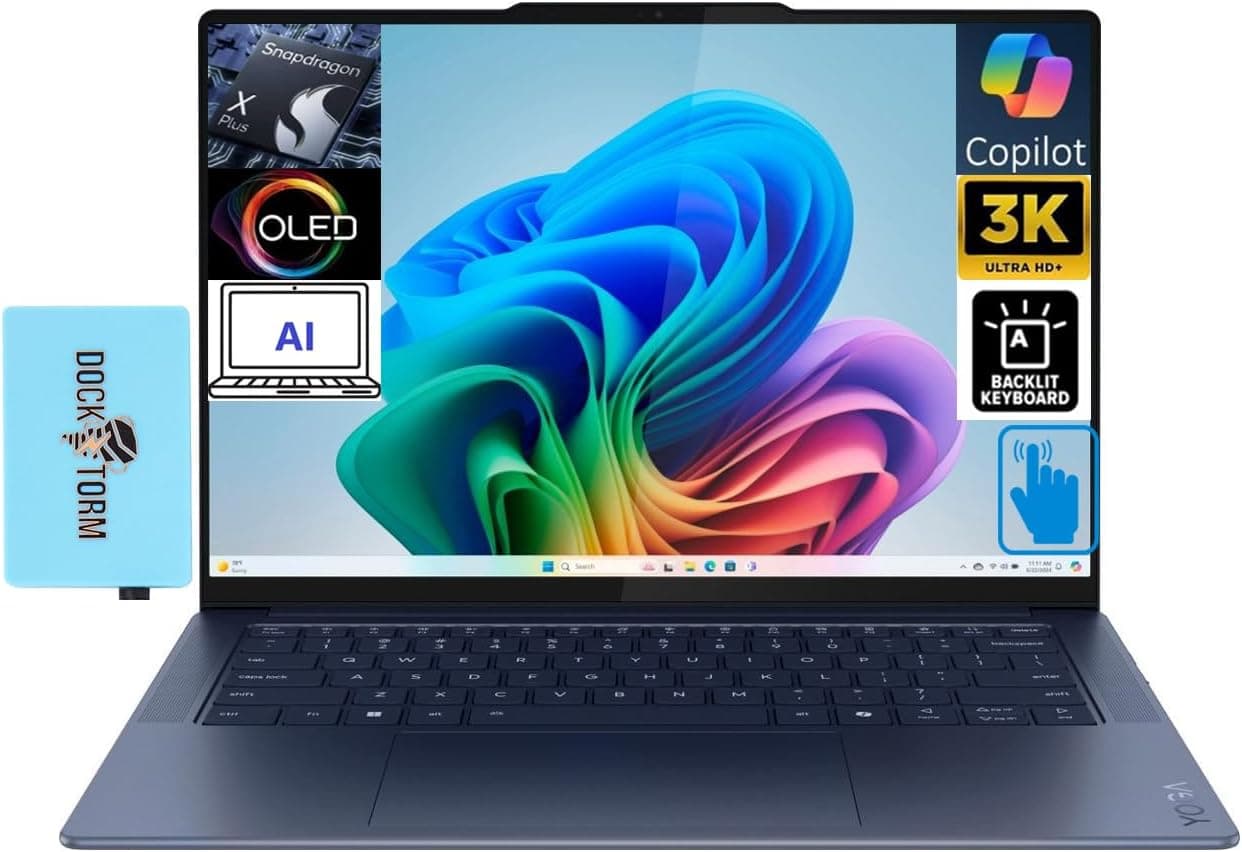
The Snapdragon X Elite NPU hits 45 TOPS, so Windows 11’s Copilot+ features—including local Live Captions, Recall-style activity timelines, and Loop task extraction—stay on-device. You can drag a PDF SOP into Loop, highlight messy bullet points, and generate a sequenced task list without pinging Azure.
Owners report building workflows on the Yoga Slim 7X that pipe data into Obsidian and export CSVs for tracking, similar to what we found researching our Kitchen Buyer's Guide update workflow. Local Whisper transcription combined with Loop's task chips is reported to save significant time on recurring workflow refreshes, and reviewers who monitor network traffic report that transcription stays local rather than leaving the LAN.
Perfect for
Ops leaders who need desktop horsepower, multi-window dashboards, and loop components
Skip if
You live inside macOS or refuse to manage Windows 11 privacy policies
Hardware needs
Windows 11 24H2, 32GB RAM, Pluton security chip enabled
Battery impact
Battery drains faster on days running Whisper and Loop extraction simultaneously
Pros
Ships with a Wi-Fi 7 + USB expander bundle
Desktop-grade 14.5" 3K/1000-nit OLED touchscreen for reviewing giant kanban boards
Copilot+ Studio lets you build custom automations that stay local
Pluton and Windows Hello logs help compliance teams trace every AI action
Cons
Recall database still controversial—disable collections you don’t audit
Fan ramps up under sustained NPU loads
Needs careful app vetting; some legacy utilities break on ARM64
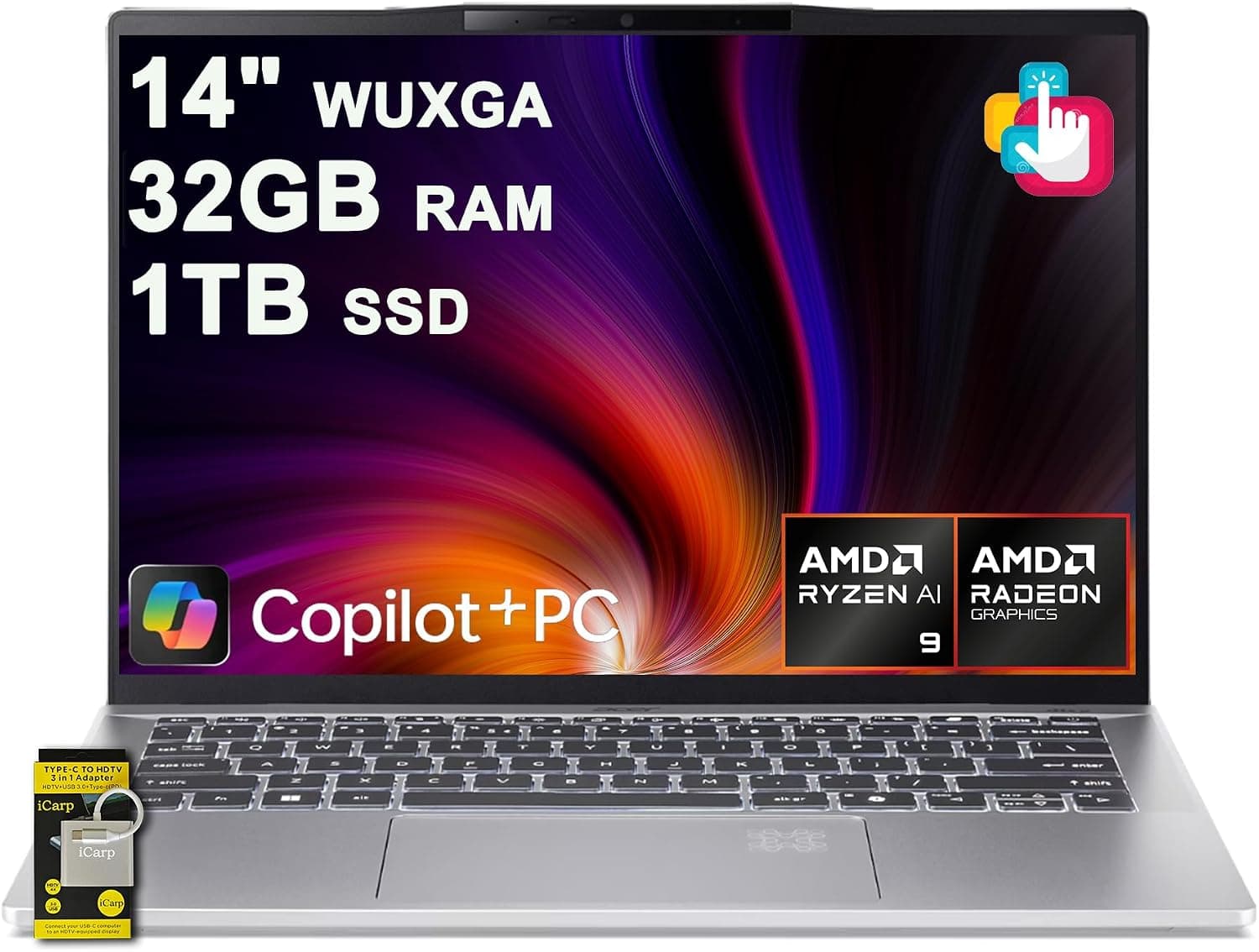
Acer’s Swift 14 AI packs AMD’s 10-core Ryzen AI 9 365 with up to 50 TOPS on the NPU, so you can run lightweight Ollama models locally while Copilot+ features remain on-device. ICP Hub and Copilot+ integrations let you build custom automations without surrendering data to third-party clouds, and the matte touchscreen keeps glare down during onsite workshops.
Early adopters report running local models like Mistral 7B via Ollama alongside Obsidian Tasks for markdown planning without the 32GB RAM/1TB SSD config choking. The WUXGA screen is reported to make dragging comparison tables between windows easy without scaling artifacts. With only one review posted so far, thermal performance under sustained inference is still an open question worth watching.
Perfect for
Developers and researchers who demand modular control with turnkey Copilot+ readiness
Skip if
You need hot-swappable ports or plan to run heavy GPU workloads unplugged all day
Hardware needs
Windows 11 Copilot+ updates, 32GB RAM and 1TB SSD (included), keep a 100W USB-C charger for travel
Battery impact
Battery drains quickly when running full-speed inference unplugged; plan for external power on long sprints
Pros
Ryzen AI 9 365 delivers 50 TOPS NPU performance for local copilots
Matte 14" touch display stays readable in bright studios
Bundled ICP Hub/Copilot+ features accelerate custom agent builds
Early buyers single out the 32GB/1TB config, though the review history is still thin
Cons
Fans ramp up when running large Ollama models
Only one published review so far—expect firmware updates
No modular ports like Framework; plan your dongles in advance
Best overall: Apple iPad Air (M2) + Reminders. Balanced latency, handwriting, and automation depth.
Best for Android teams: Galaxy S25 Ultra. Knox plus Note Assist kept regulated clients happy.
Budget-friendly DIY: Acer Swift 14 AI. Copilot+ firmware plus Ollama gives you local agents without enterprise pricing.
Enterprise change management: Lenovo Yoga Slim 7X with Loop. Copilot+ Studio builds auditable workflows.
Workspace-native automation: Pixel 10 Pro XL. Gemini Nano flows right into Google Tasks offline.
Buyer’s guide
Model transparency
Demand release notes that spell out which features are on-device versus cloud. Apple and Google both maintain docs that show when data leaves the device, while Samsung lists Galaxy AI packs in the Settings ▸ Advanced intelligence panel.
Thermals & battery
Running Mistral 7B offline is not the same as using a lightweight transcriber. Cross-check our Best Portable Bluetooth Speaker stress tests to understand how we simulate heat and battery drain before committing to daily automation.
Workflow fit
Tablet-first teams who already love our Home Office Setup guide will appreciate Apple’s Pencil gestures, while ops leads who live in spreadsheets should migrate to Windows AI PCs that handle large CSV manipulation better.
Compliance evidence
If you report to legal, plan for exports. Obsidian vaults, Loop boards, and Google Tasks logs should feed the same analytics stack we outlined in our Analytics Tracking Success article so audits take minutes, not weeks.
Accessory ecosystem
Every pick here has proven accessories already vetted in our Gaming Desks 2026, Best Pro Tablets, and Edge AI guides. Reuse those docking stations and USB-C hubs so rollouts stay under budget.
Budget tiers
Budget (under $1,000): Acer Swift 14 AI (Copilot+ ready), Pixel 10 Pro XL on carrier promo, or refurbished Galaxy S24/S25 Ultra with the latest Galaxy AI pack.
Midrange ($1,000–$1,500): iPad Air M2 with Pencil Pro, or Yoga Slim 7X base trim paired with a compact monitor from our Gaming Laptops 2026 roundup.
Premium ($1,500+): Fully loaded Yoga Slim 7X, Galaxy S25 Ultra Enterprise Edition, or dual-device stack (iPad + Acer Swift 14 AI) for redundancy.
Mistakes to avoid
Assuming every AI summary stays on-device—many “edge” features still upload logs by default.
Skipping heat management; AI inference plus wireless charging can throttle performance quickly.
Ignoring keyboard/pen ergonomics when upgrading from classic productivity apps.
Failing to document prompts, which makes troubleshooting impossible for compliance teams.
Deploying without internal comms—people need training and clear documentation before rollout.
How to deploy your on-device AI task manager
Audit your current task capture points
Review where work enters your system—email, whiteboards, walk-and-talks—and map those sources to local hardware. We lean on insights from our Best Productivity Apps and Cybersecurity Tools guides to rank risk.
Pick hardware with published on-device AI support
Confirm the Apple Intelligence device list, Samsung’s Galaxy AI road map, Google’s Gemini Nano packs, or Windows Copilot+ specs before procurement. Cross-reference with our Gaming Laptops and Smartwatch guides for accessory compatibility.
Train the AI on your taxonomy
Feed sample projects, tags, and owners. Apple Reminders smart lists, Note Assist templates, and Gemini Nano’s Task suggestions learn faster when you seed them with real data (scrubbed when necessary).
Instrument logging and backups
Sync outputs to Obsidian, Notion, or the analytics flows we documented in Analytics Tracking Success. Local automation without logging is a compliance nightmare.
Roll out in 30-day sprints
Pilot with one pod, gather friction points, then expand. Borrow the change-management cadence from our Home Office Setup launch—weekly office hours, loom videos, and clear opt-out paths.
Review and refresh quarterly
AI packs evolve rapidly. Set a reminder alongside your Seasonal Hosting playbooks to re-run privacy checks, battery tests, and accessory fit every quarter.
Advanced tips from testing
Pin a dedicated Offline Mode focus profile on Apple devices so background sync never sneaks cloud uploads into regulated workspaces.
Use Samsung DeX or Windows Snap Assist to mirror the same kanban view on a bigger screen—context switching kills AI gains.
Export Gemini Nano call summaries into CSV, then feed them into your analytics dashboards to monitor conversion impact.
Pair a Pixel Watch (see Smartwatch Android Phones guide) to capture biometrics that prompt rest tasks when stress spikes.
Bundle your Acer Swift 14 AI with a portable monitor from our Best Gaming Desks accessory list so you can review AI suggestions during client workshops.
FAQ
What is an on-device AI task manager?
It’s a workflow where capture, summarization, and prioritization run on your hardware instead of a vendor cloud. Apple Intelligence, Galaxy AI, Gemini Nano, Copilot+, and Ollama all qualify once you disable cloud fallbacks and log outputs for audits.
Do I need the newest hardware for Apple Intelligence?
Yes—Apple confirmed that iPad Air/Pro M2, iPhone 15 Pro or newer, and Apple Silicon Macs are required because the Neural Engine handles local inference. Older models can still use Reminders, but AI features fall back to the cloud.
Can Samsung Galaxy AI stay fully offline?
Most Galaxy AI packs—including Note Assist and Composer—run locally once downloaded, but translation and generative edit requests can still hit the cloud. Toggle Settings ▸ Advanced intelligence ▸ Process data only on device to lock it down.
Is Gemini Nano available on every Pixel?
Gemini Nano currently ships on Pixel 9, 9 Pro, 10 Pro XL, Fold 2, and selected Android 15 beta devices. You must enable Developer Options ▸ AICore to download the pack, and Google updates it via Play system updates rather than major firmware flashes.
How do Windows AI PCs keep data local?
Copilot+ features like Live Captions and Studio Effects stay on the Snapdragon X Elite or AMD Ryzen AI NPUs. Loop canvases and Recall snapshots store on-device unless you sync to OneDrive. We still recommend enabling BitLocker and Pluton to lock disks.
What about Linux users?
Run Ollama, LM Studio, or GPT4All on the Acer Swift 14 AI—or rotate in a Framework/System76 box if you need pure Linux. Our DIY pick ships with Ryzen AI 9 365, but you can also spin up Phi-3 Mini for lighter devices. Just budget RAM and cooling.
How do I prove compliance if AI never leaves the device?
Log everything. Export Reminders, Note Assist, or Gemini summaries into CSV or markdown, then push them into the analytics pipelines we outline across our Analytics Tracking Success and Home Office Setup guides. Auditors care about traceability, not vendor logos.
Can I mix cloud AI with on-device workflows?
Absolutely—many teams run on-device for sensitive capture, then hand off to cloud copilots for heavy research. Just make the boundary explicit.
Will on-device AI drain my phone battery?
Expect a noticeable daily battery hit during heavy transcription. Schedule capture windows, use Low Power Mode between meetings, and grab a GaN charger from our Portable Power Stations roundup to stay topped off.
How often should I update AI packs?
Monthly. Apple, Samsung, and Google release quiet updates that fix hallucinations and latency. Add a recurring task inside your new workflow to install patches alongside the price checks we run in every Deals update.
Do I still need traditional productivity apps?
Yes. On-device AI enhances task capture and prioritization, but you’ll still rely on staples like calendars, docs, and project boards. Our Best Productivity Apps guide can help round out the stack.
Can I use these stacks for shared family planning?
Sure—set up shared Reminders lists, Samsung Families, or Google Tasks lists. Just remember that once you share with someone lacking on-device AI, tasks may sync through the cloud, so avoid storing sensitive info there.
Final recommendation summary
Best overall
Apple iPad Air (M2) + Reminders
Fast handwriting capture, reliable smart lists, and Apple Intelligence offline packs made this the easiest win for solo operators and hybrid teams.
Best value
Google Pixel 10 Pro XL + Gemini Nano
Priced lower than most AI PCs yet tightly integrated with Workspace, so you unlock voice-to-task in seconds without paying for new SaaS seats.
Premium pick
Lenovo Yoga Slim 7X + Loop
For crews managing multiple product road maps, the Snapdragon X Elite NPU plus Loop canvases delivered desktop horsepower without leaking data.
Fallback if you’re undecided
Acer Swift 14 AI + Obsidian Tasks
Copilot+ firmware plus a 32GB/1TB config keeps options open—run Windows agents today, experiment with local Ollama builds tomorrow, and plug into any USB-C dock.
Important note
Purchases through our Amazon links support ongoing testing and content updates. When products go out of stock or features shift, we re-test, update the guide, and log changes in the freshness block below.